
Taizihao
Smart Detect
A professional label printing package built on three ideas: editing stripped to the essentials, mistakes caught automatically, and shift changeovers in one press. Design becomes simple, printing stays reliable, and handovers no longer interrupt production.
Caught at every step
Handovers made simple
Editing stripped to the essentials
Drag, click, and what you see is what you print — a professional label in 30 seconds with no design experience.
Automatic inspection and alarm
Content is checked automatically after printing; a fault raises an audible and visual alert within a second and stops the bad label.
Efficient central management
Queue the changeover in advance and monitor and configure every machine from one place. Throughput rises sharply.


Mistake-proofing × minimal operation × shift queueing
Routine maintenance and calibration
Cleaning the print head and paper path regularly, and calibrating when needed, keeps prints sharp and extends the life of the machine.
Routine cleaning
→ Open the printer’s top cover
→ Using a cleaning pen, or a cotton swab moistened with diluted alcohol (ethanol or isopropyl alcohol), wipe gently from the centre of the print head outwards towards each side
→ Do not use the printer straight away: wait for the alcohol to evaporate completely (about 1–2 minutes) and the print head to dry before use
→ Use a dry cotton cloth or swab to wipe dust and debris off the sensor surface
→ When print quality or paper detection gets worse, repeat the cleaning steps above
→ Use a dry cotton cloth or swab to wipe dust and debris from the platen roller and the paper path
→ Moisten the cloth or swab with medical alcohol and wipe again to remove any sticky residue
→ Let the alcohol dry completely before switching the printer back on
How often to maintain and calibrate
→ Press the calibration button on the upper right at the back once to locate the labels. When it finishes you can reload the blank labels that were fed through. Continuous paper does not need this.
→ Take out the paper roll and the ribbon, and give the machine a basic clean
→ Unplug the power cable
→ Cover it, or put it back in its box, and store it somewhere dry and out of direct sunlight
Replace the ribbon
Take out the old ribbon
Open the top cover, lift the print-head assembly, take out the used ribbon and keep its core.
Load the new ribbon
Unwrap the new ribbon, fit it onto the ribbon core and place it in the ribbon holder.
Fit the take-up core
Fit the take-up core, stick the ribbon’s leading edge to it and wind it tight with no wrinkles.
Close and test
Close the print head and top cover and feed a test label. If it prints cleanly, you’re done.
Taizihao Smart Label Printer · Specifications
Print settings and consumables
Controller · Inspection · Software · Interfaces and environment
Connecting the printer
Connect the printer and set it up

Connecting the printer and its indicators
Connect the power cable
Connect the power cable and switch on. To switch off, simply unplug it.
Connect the network cable
Connect the network cable to put the printer on the network.
Status indicator
A green light on the top front means the machine is ready and running normally.
Inspection alarm light
The inspection alarm light on the front left of the top face turns red and sounds the alarm when a fault is detected (wrong label, missing label, contamination).

Open the software and scan for machines
Open printer management
Open the Taizihao Label Editor and click “Printer management(打印机管理)” at the top. There are two buttons at the top of the page: normally Refresh(刷新) is enough to get results straight away. If a machine is not found, use Scan(扫描) to sweep the whole subnet — that takes noticeably longer.

Rename the printer (optional)
Give it a name
Click the pencil icon to the right of the machine (not the text button) to name the printer — “Moulding 1” or “Line A”, for example.

Set the print parameters
Media and print method
Click the gear icon to the right of the machine to open “Edit print settings(编辑打印参数)”. Media type can be continuous, black-mark or gap labels; Print method can be thermal transfer or direct thermal. Print mode, speed, density and the paper-take position are set automatically by the system.
Indicators and buttons
The indicator lights and button combinations tell you the printer’s state at a glance and cover the basic operations.
Indicator states
Button function

Buttons at a glance
Inspection alarm button
The round button on the front left of the top face. It lights up and sounds a tone when a fault is detected; press it to silence the alarm.
Calibration button
The button on the upper right at the back. Press it once to locate the labels on first use or after switching between direct thermal and thermal transfer. Continuous paper does not need it.
Feed button
The button on the lower right at the back. Press once to feed a length of paper; press once while printing to pause, and again to continue.
Changeover button
The button on the right side of the machine. Press once to switch to the queued template(预约打印的模板) and carry on printing. It only does something when a template has been queued.
Quick start — your first label
Once it is connected, follow the steps below and your first label prints in about a minute.

Create a label template
Enter the size and apply
There is no “New template(新建模板)” button. Type the Width (mm)(宽度(mm)) and Height (mm)(高度(mm)) in the top bar and press Apply(套用) — the canvas resizes to the label you are about to print.

Type the label text
Add text and paste it in
Click “Add text(新增文字)” in the toolbar and paste in what you want to print. The software lays it out to fit automatically.

Edit the label
Select, edit and lay out
You can select and edit part of the text, or edit the whole box if nothing is selected. For layout, text you have not edited yet responds to Auto layout(排版), which fits it to the label. You can delete a single layer, or press Clear(清空) to empty the whole canvas.

Layers and size
Position, size and layer order
Selecting an object shows its exact position and size, which you can fine-tune. Use the up and down buttons to change the layer order.

Ruler guides
Guide line
Clicking on the ruler places a guide line at that point; press Clear guides(清除对齐线) to remove them.

Send to print
Choose a mode and print
Choose a printer. There are only two print modes: Single(单张) and Batch(批量). Press Send to print(下发打印) to print (“Send to print(下发打印)” is a button, not a mode). The first time you send, the software asks you to confirm the template name before filing it; sending the same template again after that overwrites it in snapmark_doc.
Single print mode
Print one label and tear it off — for packing on the floor: finish a pack → tear the label off and apply it → print the next one.

Single mode and queueing
Select Single and send
After choosing a printer and the Single(单张) mode, the quantity box disappears and is replaced by “无限打印” (unlimited printing). Press Send to print(下发打印) and one label comes out; tear it off and the next one prints. You can also press Queue print(预约打印) — queueing works in single mode only — and the operator switches content on the floor with the changeover button.

Queue a shift changeover
Open the template you want to queue
Choose a printer and select Single mode
Press “Queue print(预约打印)”
Check it is queued in printer management (next step)

Check the changeover is queued
Look at the “Queued task(预约任务)” column
After you press Queue print(预约打印), switch to Printer management(打印机管理) and find that machine’s row. The boxed Queued task(预约任务) column shows the template you just queued and its print mode — seeing it there means the changeover is set. An empty column means nothing was queued: go back to the editor and queue it again.
One queued template per machine
A machine holds one queued template at a time; queueing another replaces it. To cancel, press Cancel queued(终止预约) on that row and the column shows “Cancelled(已终止)”.

Changeover button on the floor
Press the changeover button on the machine
Once a job is queued, the operator only has to press the “Changeover button(换单键)” on the right side of the machine to switch to the queued template and carry on printing. Nobody has to go back to the computer.
Batch print mode
Choose a printer, select Batch mode, enter a quantity, and press Send to print(下发打印) for a continuous run.

Batch print
Select Batch and enter a quantity
Choose a printer, select Batch(批量) mode and enter the quantity (up to 1000 labels per run — anything more cannot be submitted), then press Send to print(下发打印). The machine prints that many labels in one run. In batch mode the Queue print(预约打印) button is greyed out: queueing works in single mode only.
Printer management
Shows what each machine is printing now and what is queued. You do not have to save the template first — send or queue it and the software will ask you to confirm the template name before filing it.
About this screen
Running job
The template the machine is printing right now, with Single or Batch mode shown beneath it.
Queued job
Pressing the changeover button on the machine switches to it. Only one job can be queued at a time; queueing another replaces it.

Printer maintenance
Manage each machine’s inspection switch, push printer updates, and remove machines that have been retired.

Inspection switch
Inspection switch per machine
Each machine has its own switch in the Inspection(检测) column; click it to turn inspection on or off. Turning it off opens a confirmation window warning that print faults will no longer be detected. Offline machines cannot be changed.
Turn inspection on/off in bulk
Click Turn inspection on/off in bulk(批量开/关检测) at the top and a window shows how many machines currently have inspection on. You can choose “Turn all on(全部开启)” or “Turn all off(全部关闭)”, which applies to every online machine at once.

Printer update
Choose the update package
Click Printer update(标签机更新) at the top. Normally One-click printer update(一键更新标签机) is all you need; to install a specific version, choose the update package file yourself.
Tick the machines to update
It lists “current version → update to(当前版本 → 更新至)”. Tick the machines you want to update, or press Select all(全选).
Update the selected machines
Update the machines one at a time and close the window when they have all succeeded. Do not send print jobs to a machine while it is updating.

Remove a printer
Only offline machines can be removed
The Remove button(移除) is only available when the machine is offline. Removing it only takes it off this list; it does not affect the machine itself, and it will reappear after a scan once it is back online.
Cancel running / cancel queued
In “Printer management(打印机管理)”, each printer has two red buttons on the right that cancel its printing or its queued job. Cancelling stops the job completely.

Cancel running / cancel queued
Cancel running
Cancels the machine’s “running (printing)(执行)” job. The job stops completely and the Running column shows “Cancelled(已终止)”. Note that labels already printed cannot be recovered.
Cancel queued
Cancels the machine’s queued job. The queue is cleared and the Queued column shows “Cancelled(已终止)”.
State after cancelling
A field showing “Cancelled(已终止)” has its button greyed out. To start again, send or queue a new template.

The editor can cancel too
Stop without changing pages
There is also a Cancel job(终止任务) button at the bottom right of the editor, which stops the current machine’s printing without changing pages. It is greyed out when there is no job running.
Dual-template printers
For the Taizihao Line series (networked). Two templates are stored in advance and switched automatically by the packing-machine signal, so nobody has to change over by hand.

Send two templates from the editor
Set the machine to dual template first
In “Printer management(打印机管理)”, click the machine’s gear icon and set “Template mode(模板模式)” to Dual template(双模板). Back in the editor, select the machine and the send mode switches to dual template automatically — no print mode or quantity to set.
Choose the target slot
Open the first template and set “Send to(下发至)” to “Label 1(1 号标贴)”; for the second template choose “Label 2(2 号标贴)”.
Send and store
Press Send to print(下发打印) to store the current template in the selected slot. Switch to the other template, choose the other slot, and send again — both slots are then loaded.

Switched automatically by the packing-machine signal
Switched by the packing-machine signal
Connect the packing-machine signal and the machine switches between Label 1(1 号标贴) and Label 2(2 号标贴) automatically as the signal changes, with no manual changeover.
Check in printer management
The “Dual-template printers(双模板标签机)” area of “Printer management(打印机管理)” shows the template and status of both slots — Running-1(执行-1) and Running-2(执行-2) — for every machine.
Convert to a field
Turn the text you change often into a “field”, then fill it in from Excel in bulk to generate many templates at once.
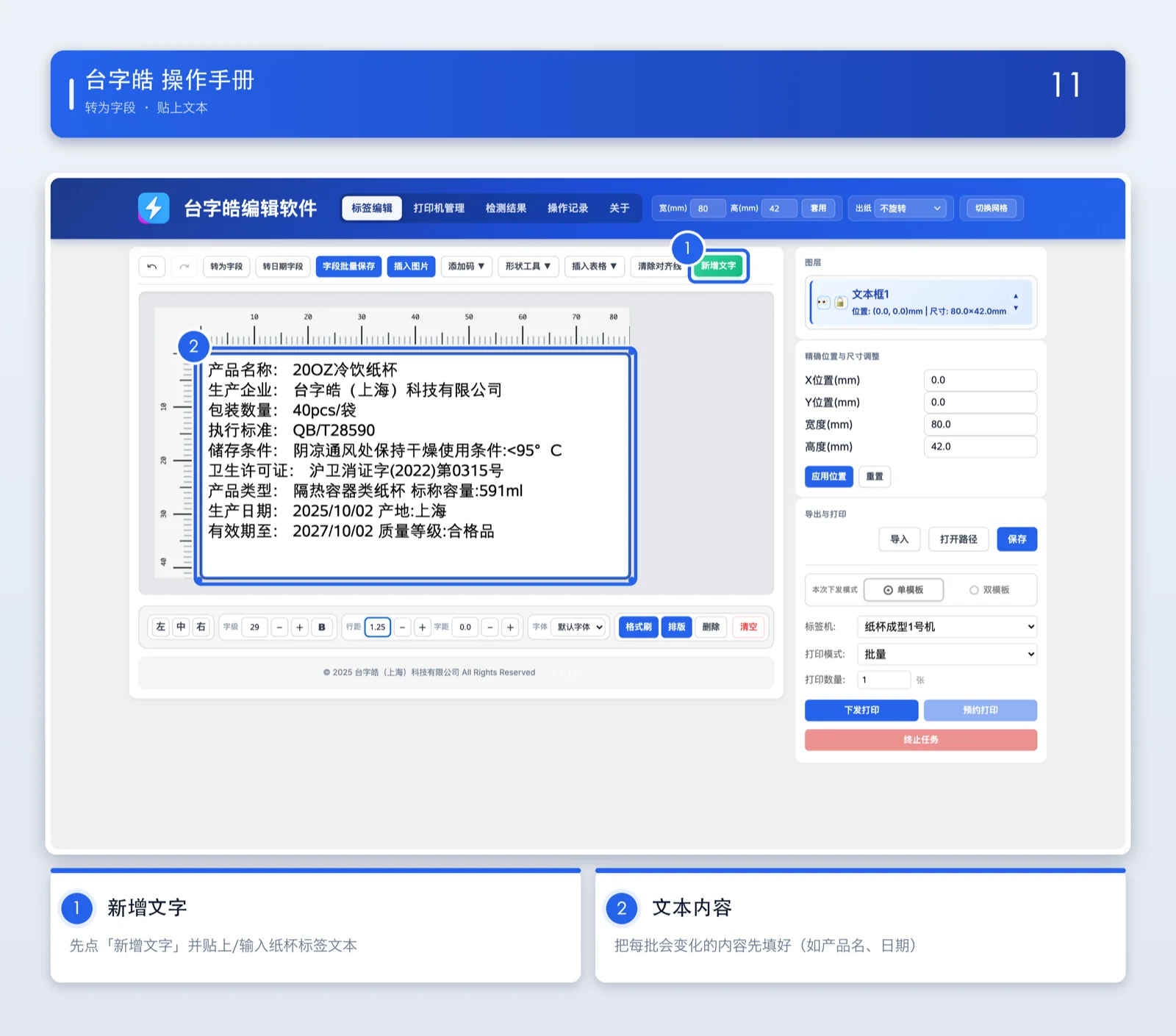
Paste the text
Paste into the editing area
Paste the content you change often — a product name or model number, for example — into the label editing area.
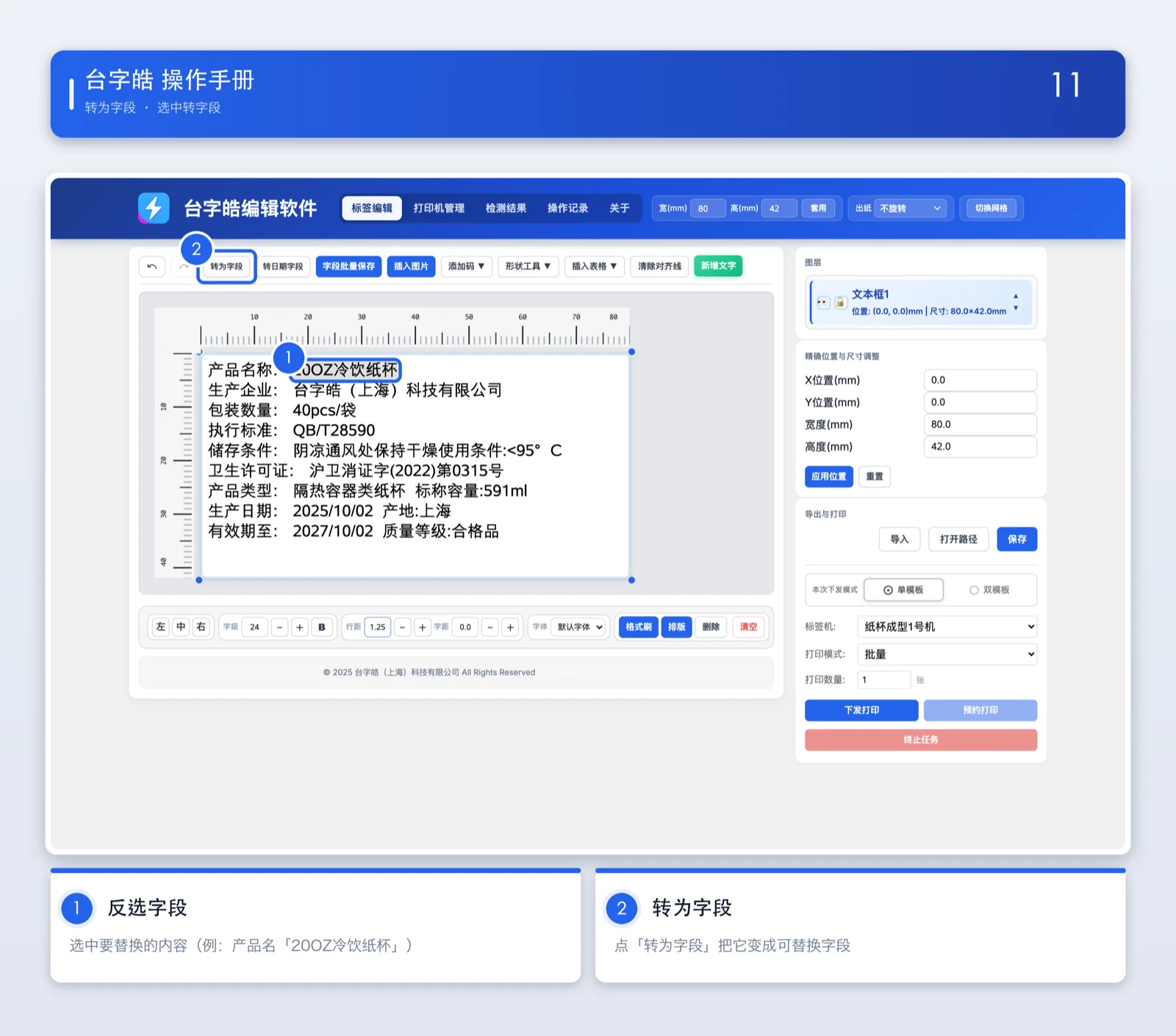
Select it and convert to a field
Select it and convert to a field
Select the text you want to replace and click “Convert to field(转为字段)”. The selected text turns into a field placeholder.
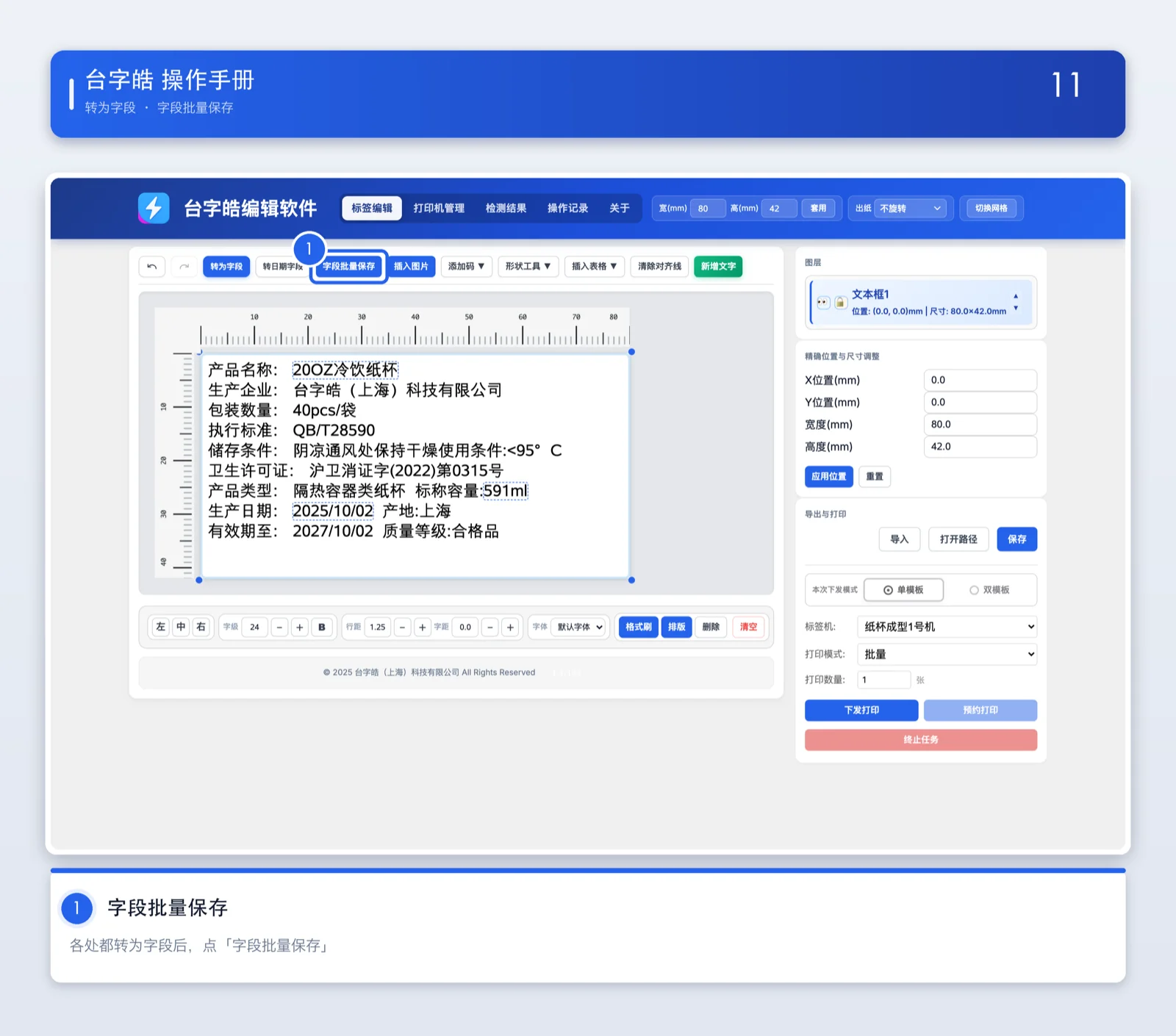
Batch save fields
Open the batch window
Once every piece of text you want to replace has been converted to a field, click “Batch save fields(字段批量保存)”. Note that this button only opens the batch window — it does not save anything by itself. The actual saving happens later, with “Batch save templates(批量保存模板)”.
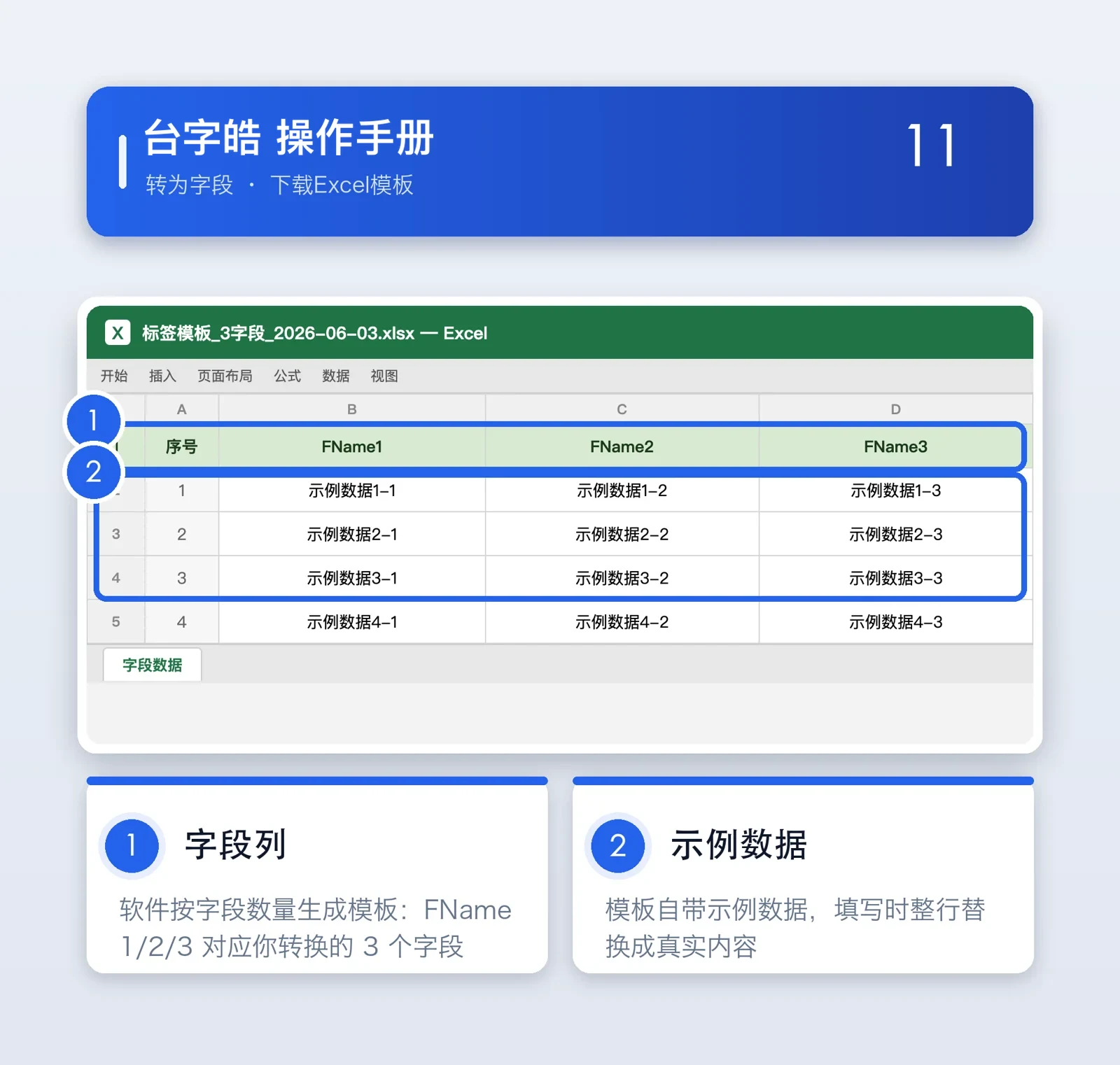
Download the Excel template
Generate the header row
Click “Download Excel template(下载 Excel 模板)” to generate a header row matching the number of fields. In the file you download, the first column is a row number and the columns after it are the fields you converted. The second row is a sample row (it will not be printed): it shows what each field currently holds on the label, so you can check the positions. Deleting it or leaving it makes no difference.
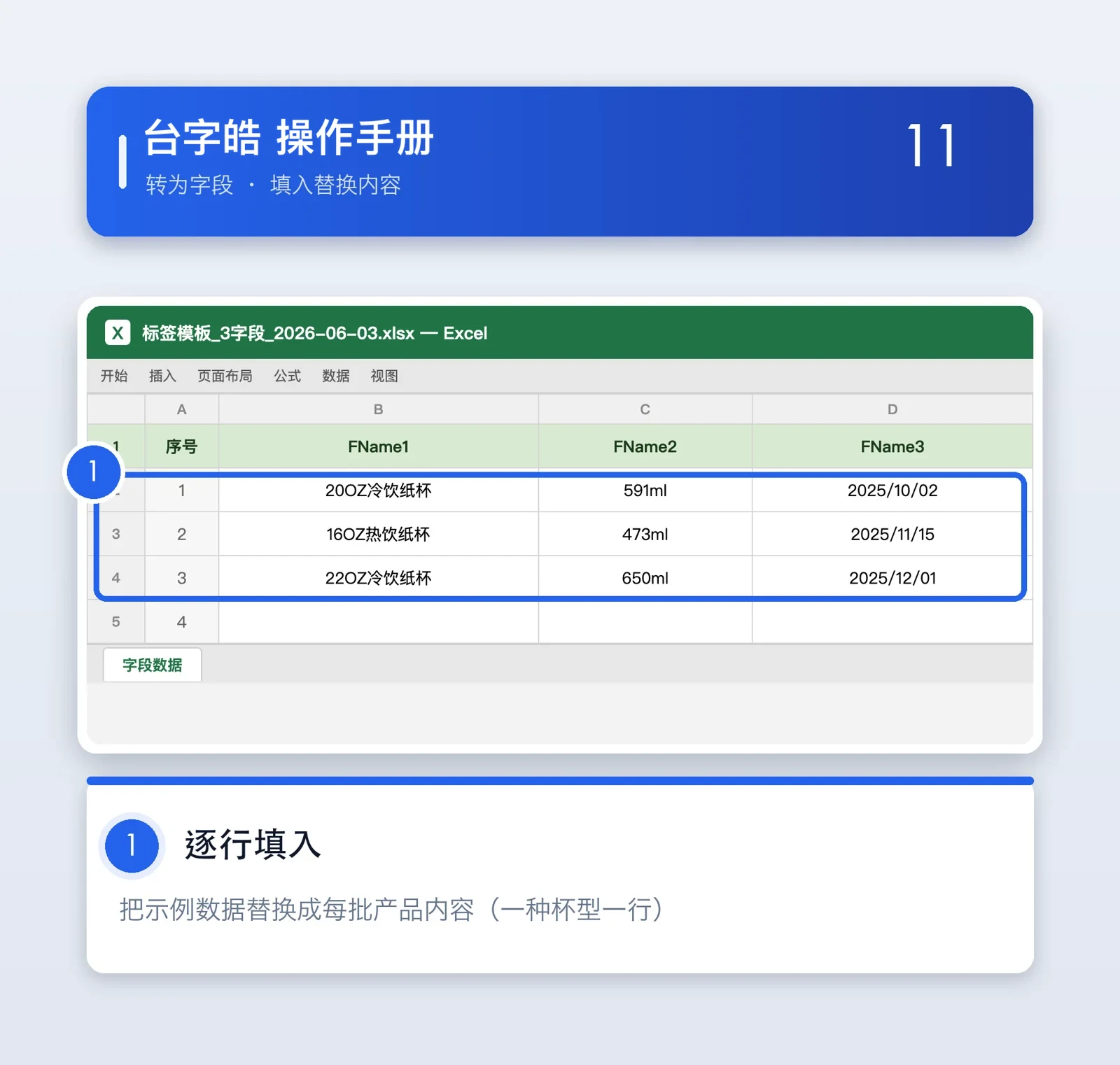
Fill in the replacement text
Fill in the Excel column by column
Fill in the text to be replaced column by column in Excel, one row per label, and each row generates one template. Do not change the header row — the import will fail if you do.
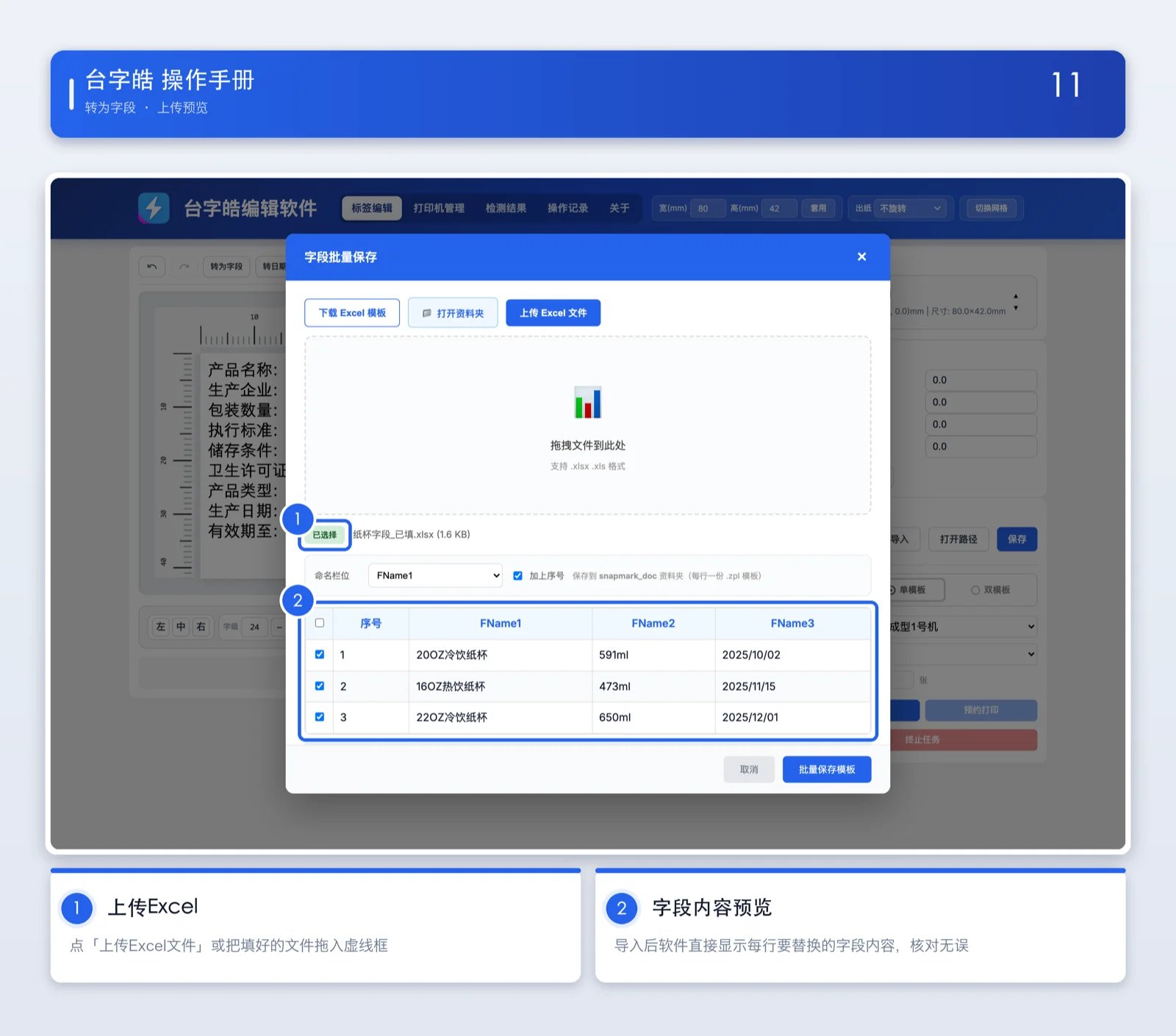
Upload the Excel and preview
Import and preview
Click “Upload Excel file(上传 Excel 文件)”, or drag the file straight onto the window, to import the data you filled in.
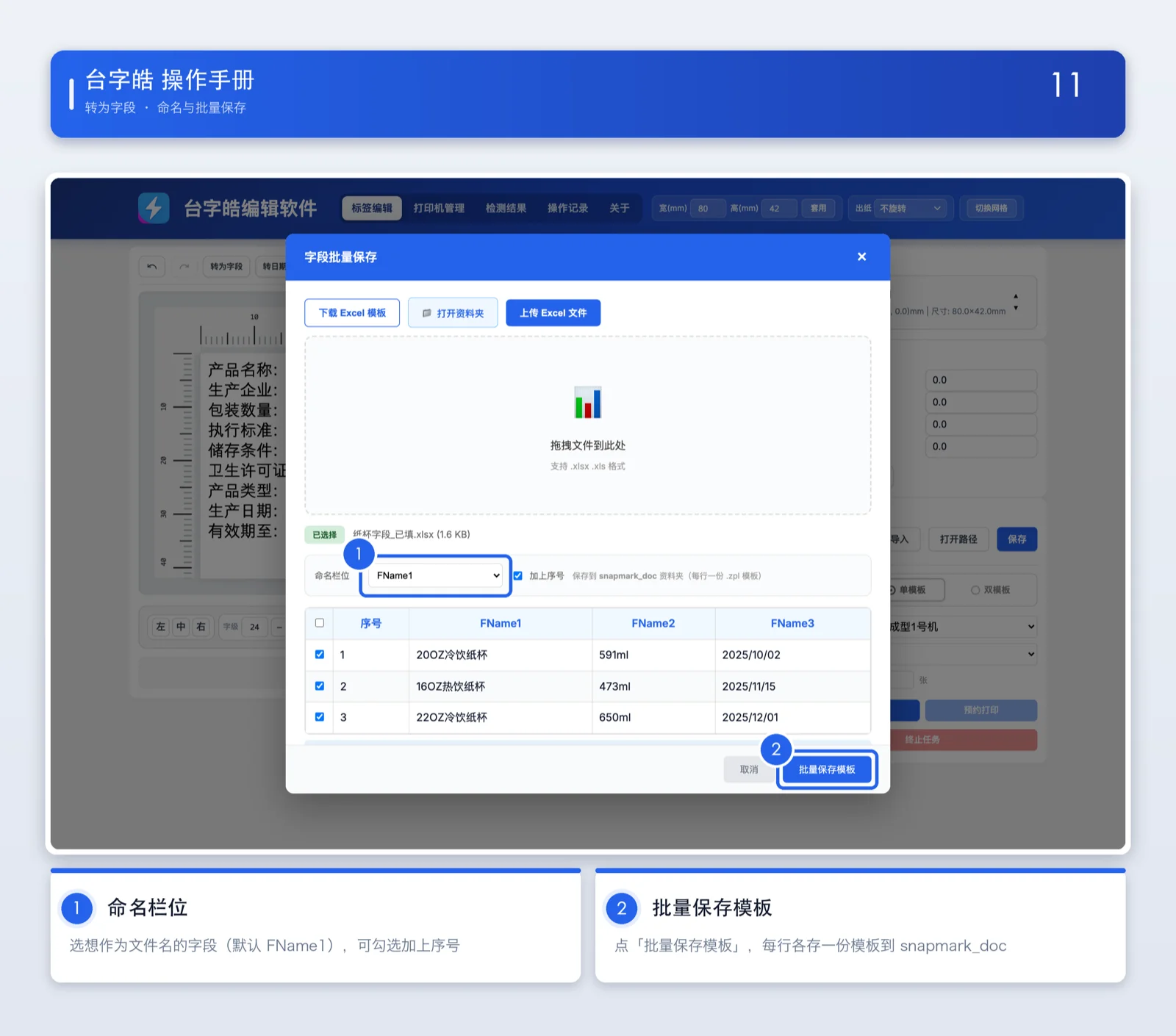
Batch save templates
Name column and save
In “Name column(命名栏位)”, choose the Excel field to use as the file name, then click “Batch save templates(批量保存模板)” to save every row as its own template in snapmark_doc.
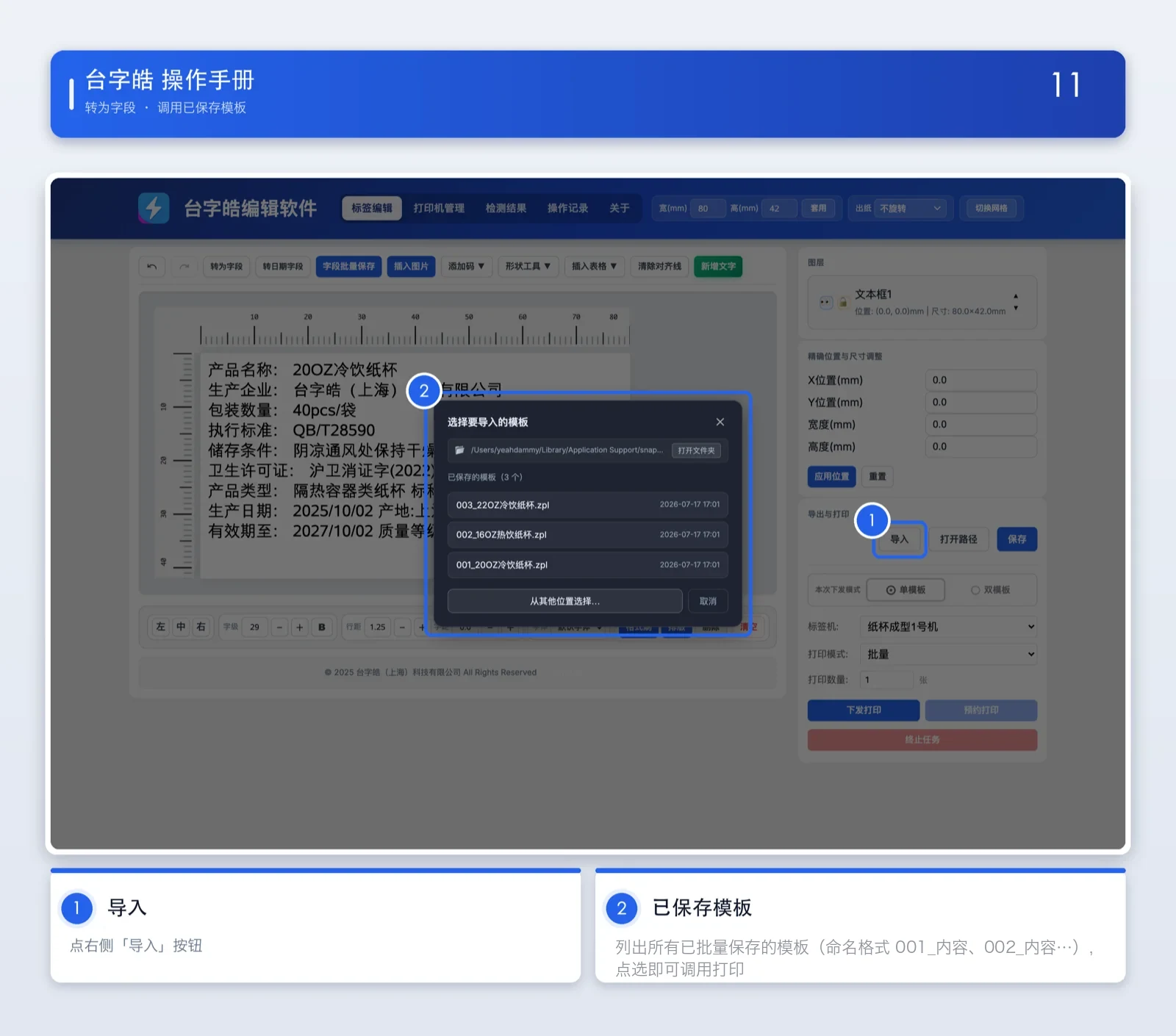
Open a saved template
Import a saved template
After the batch save, click “Import(导入)” on the right of the editor to see every saved template (named 001_content, 002_content and so on — the sequence number comes first, separated by an underscore; you can clear the “Add sequence number(加上序号)” checkbox when saving). Pick one to open it.
Convert to a date field
Turn a date on the label into a “date field(日期字段)” so it shows the current date when it prints. You can set the format and an offset.
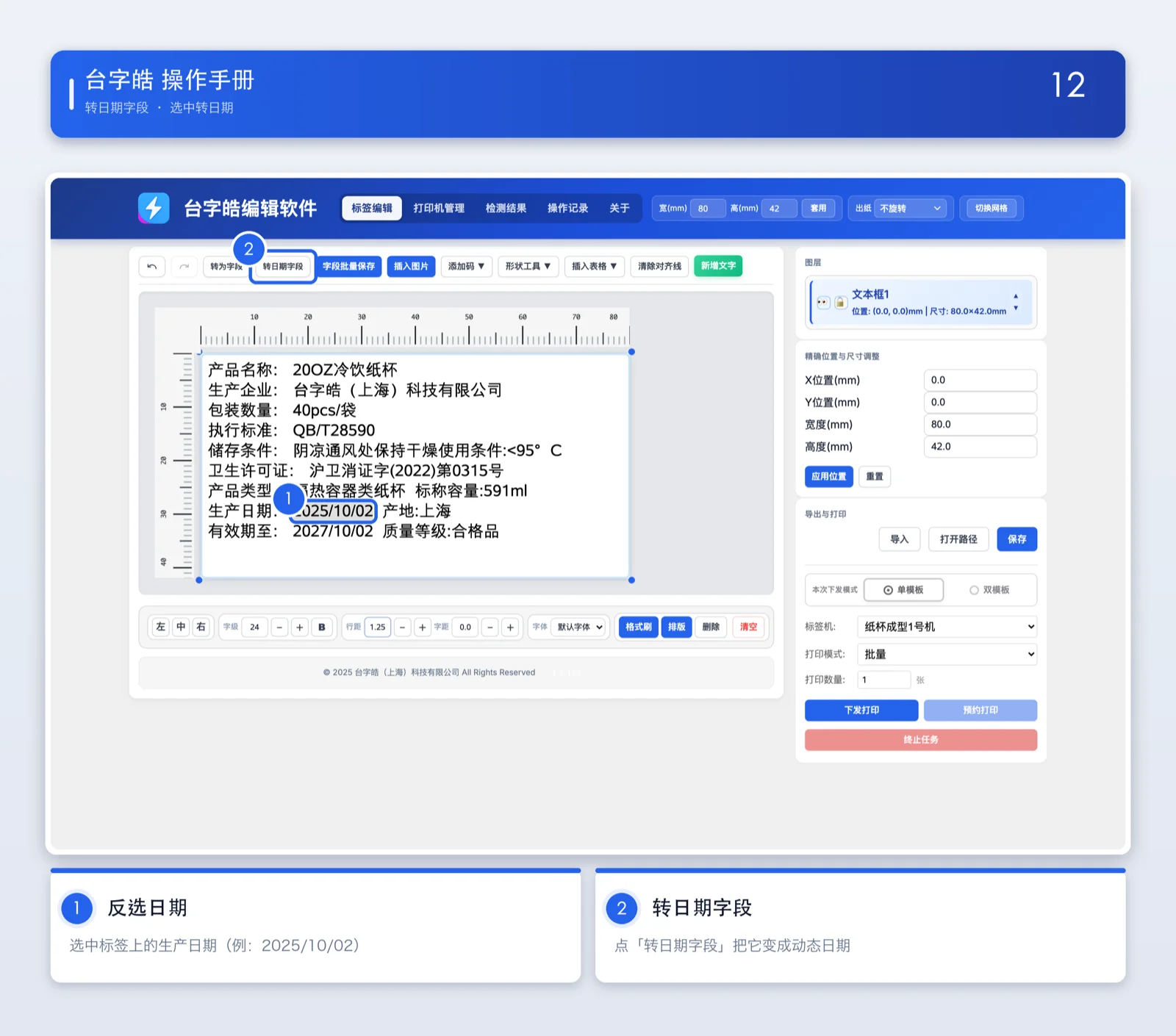
Select a date and convert it to a date field
Select it and convert to a date field
Select the text you want to turn into a date and click “Convert to date field(转日期字段)”.
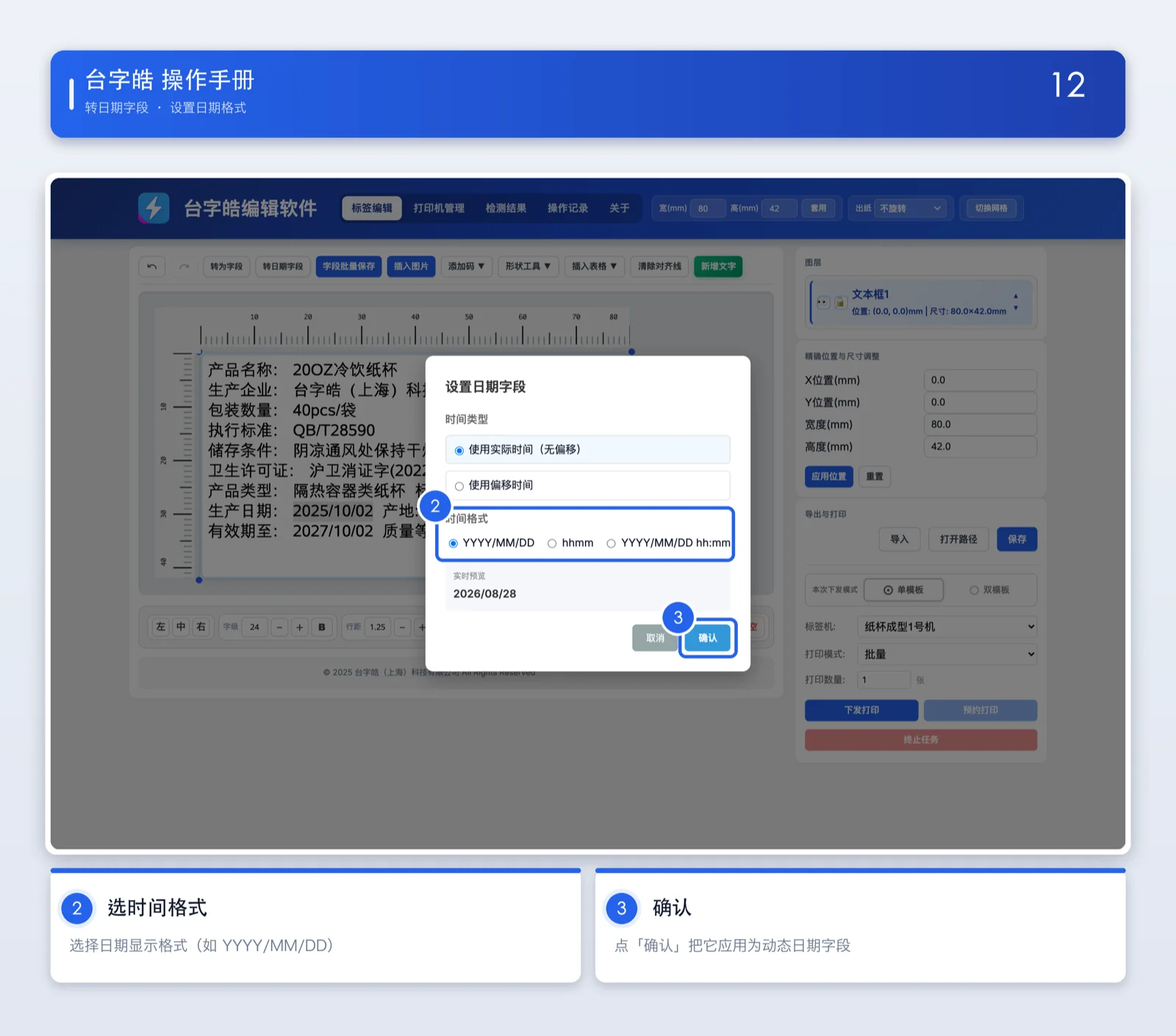
Set the date format
Time format and confirm
The date field dialog opens. There are only three time formats: YYYY/MM/DD, hhmm, and YYYY/MM/DD hh:mm (no custom formats).
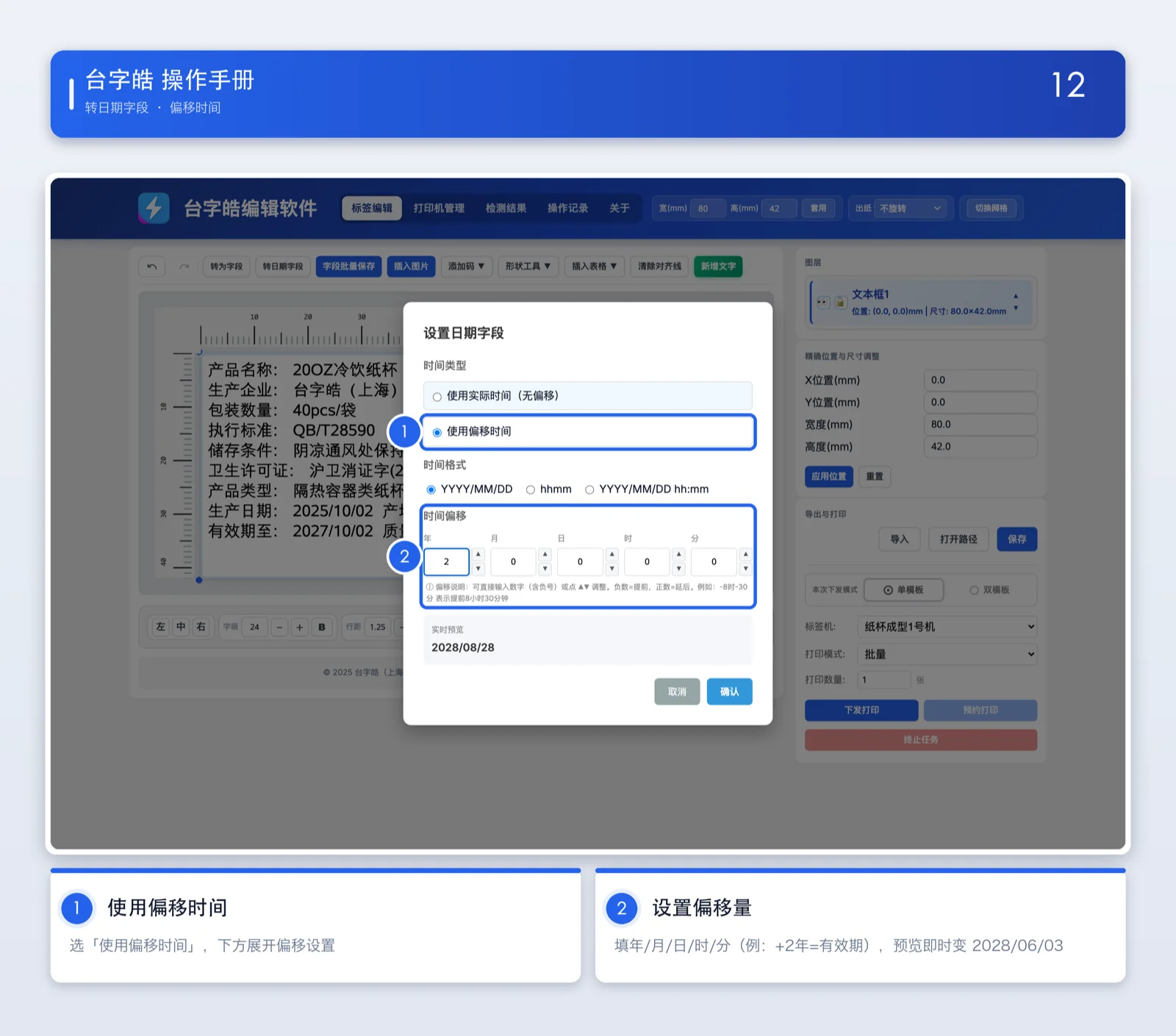
Time offset (optional)
Dynamic offset
You can use an offset with five units — years, months, days, hours and minutes. A negative value brings the date forward and a positive value pushes it back (for example −8 hours −30 minutes prints a time 8 hours 30 minutes earlier). Useful for best-before and production dates.
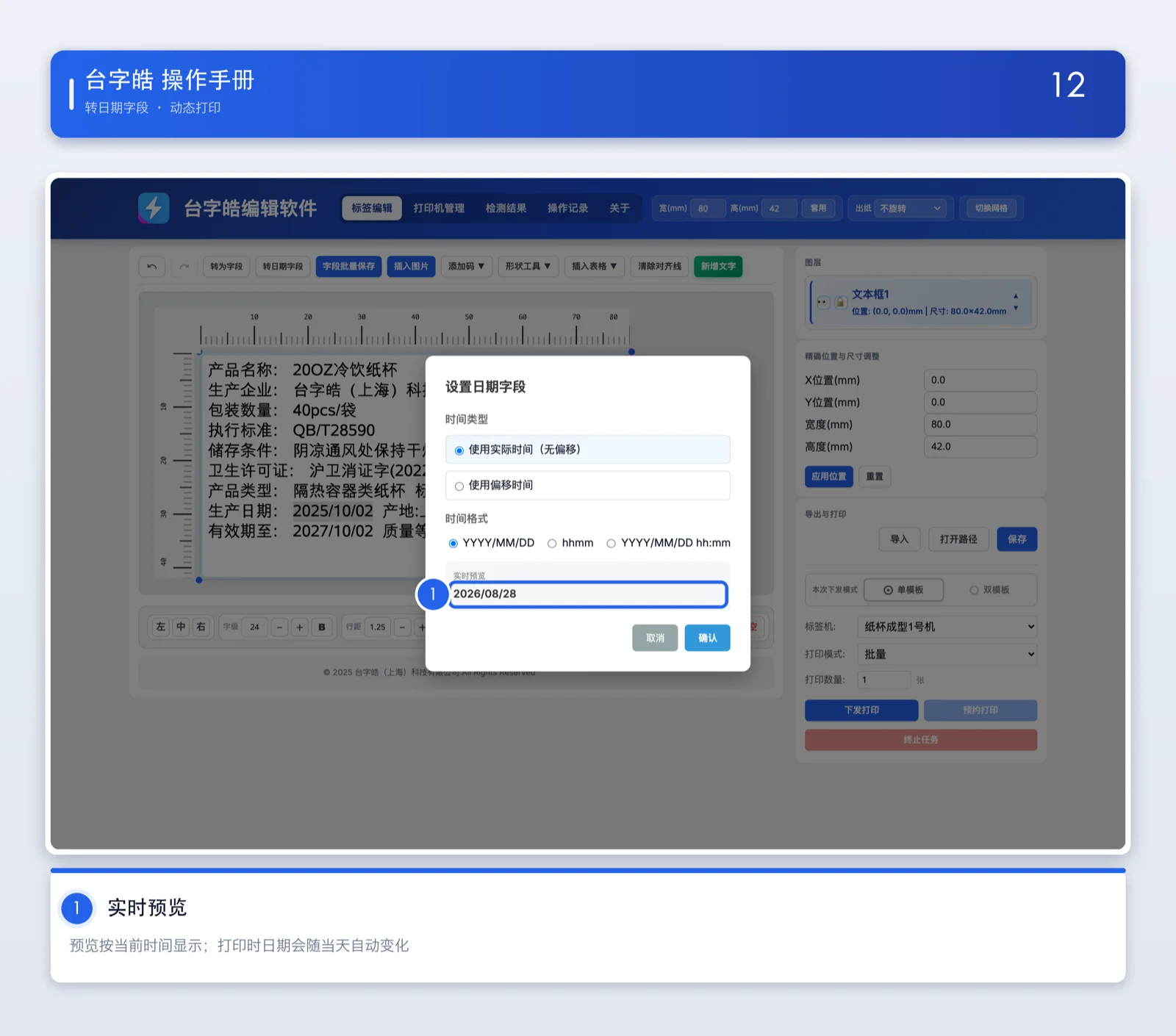
Updates as it prints
Shows the current date
Once set, the date field updates itself from the current time every time you print — no more editing it by hand.
Add a table
Insert a table on the label with the rows and columns you want, drag to resize it, and double-click to type and format the text.
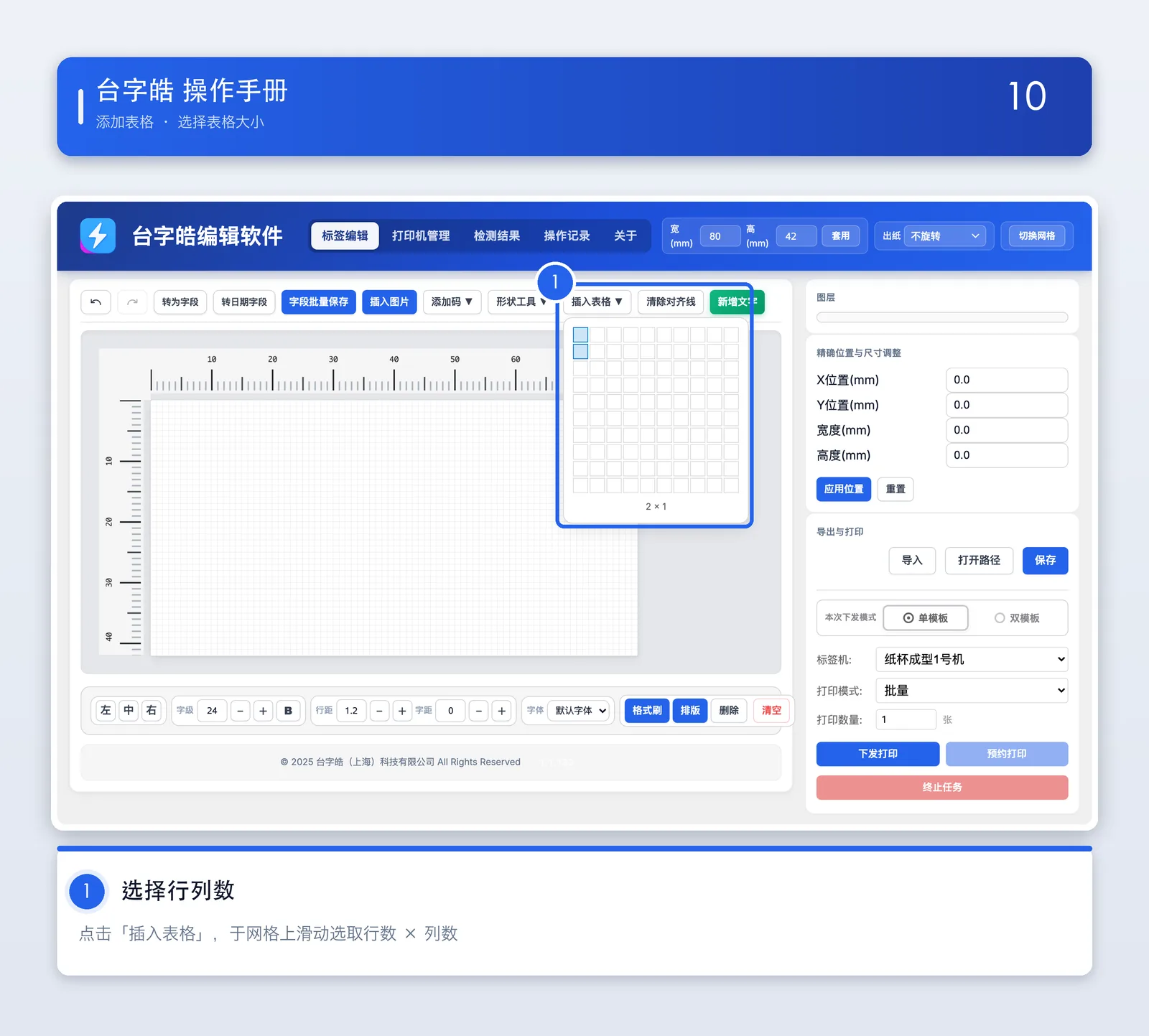
Insert a table
Choose rows and columns
Click “Insert table(插入表格)”, choose the number of rows and columns, and it is inserted.
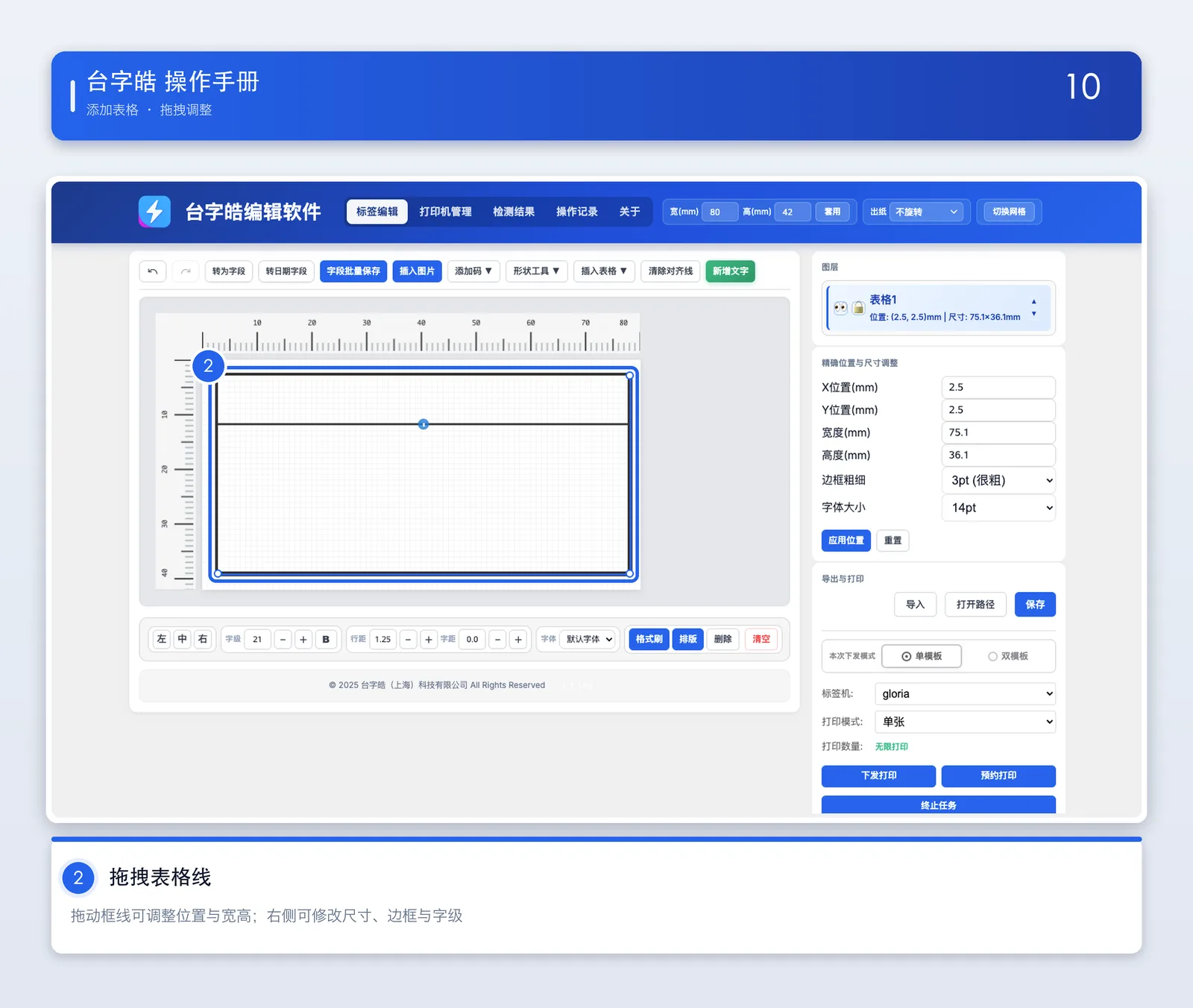
Drag to resize
Drag the table lines
Once inserted you can drag the table lines to move it or change its width and height.
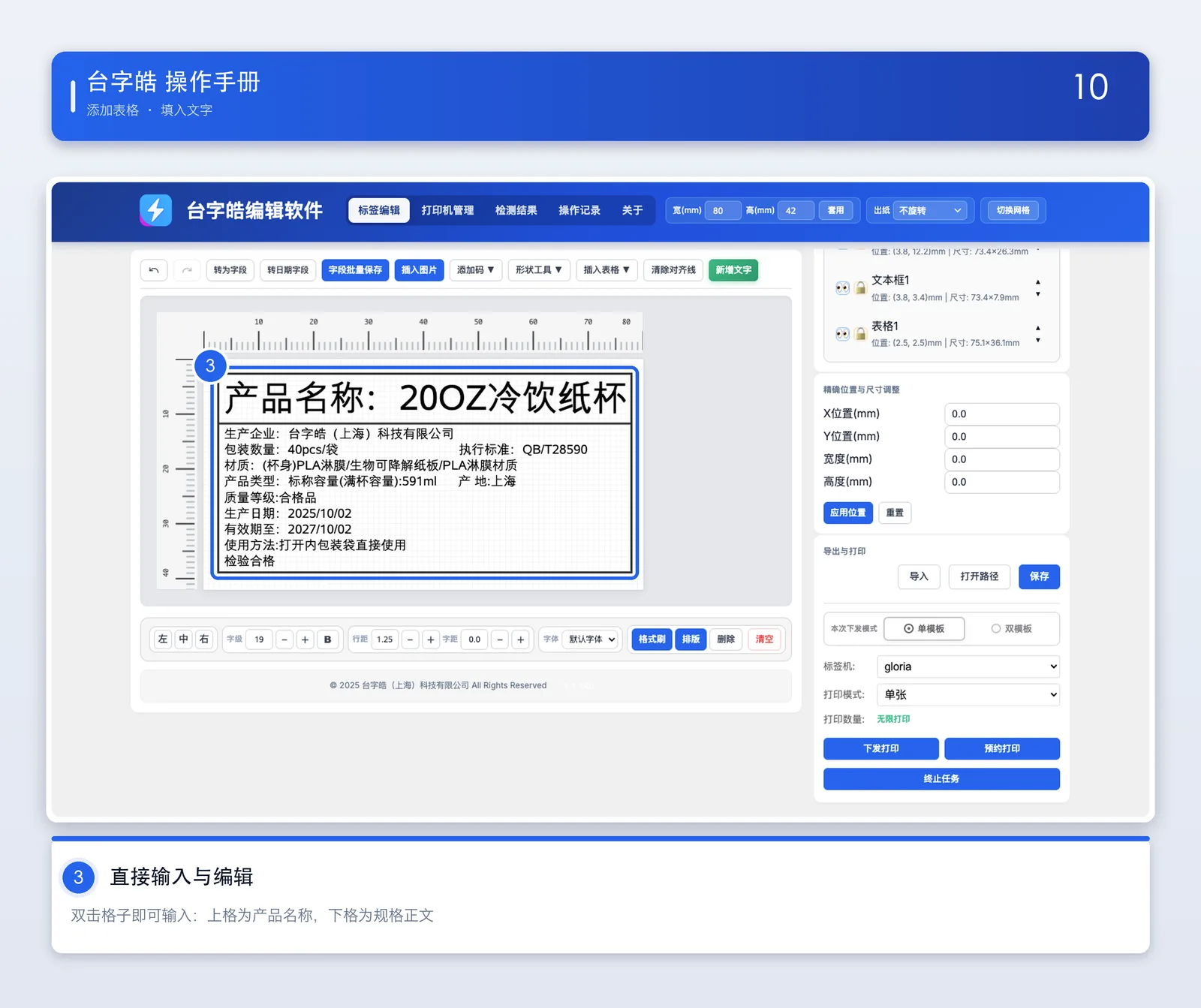
Type directly in the cell
Type and edit directly
Double-click inside a table cell to type in it. Put the product name in the upper cell as a heading and the specification or details in the lower cell. Font and layout can be adjusted right inside the cell — there is no need to insert a separate text box — and what you see is what you print.
Bulk WiFi setup
Once the printers are on the network by cable for the first time, you can put several of them on the same WiFi in one go. After the switch they move to the new subnet, so the computer has to move to that subnet too before it can reach them.

Bulk WiFi setup
Open the setup window
In “Printer management(打印机管理)”, press the “Bulk WiFi setup(批量设置 WiFi)” button at the top to open the setup window.
Enter the WiFi name
Press “Scan(扫描)” to list nearby WiFi networks and click one to fill it in, or type the name yourself.
Enter the WiFi password
Type the network’s password in the “WiFi password(WiFi 密码)” box.
Tick the printers to configure
Tick the machines under “Select the printers to configure(选择要设置的标签机)”, or press “Select all(全选)” to take them all at once.
Apply
Click Apply to the selected printers(套用到已选标签机). A reminder appears first: after the switch you must put the computer on the same WiFi before the machines can be found.
Check the result
Each printer shows one status line. There are four:
✓ Connected: the printer has confirmed it is on the new WiFi.
○ Sent, confirm after scanning: the command was delivered and the printer drops off the network while it switches. Put your computer on the new WiFi, press Scan(扫描), and the line turns to ✓ once the connection is confirmed.
✗ Send failed: the printer never received the command and nothing was changed. Check that it is online and try again.
✗ Switch failed, reverted to the old WiFi: the new WiFi did not connect (a wrong password, for example). The printer has restored its previous network and the old settings are untouched. Fix the problem and try again.
Once every printer is done the window shows a summary: “WiFi setup: X succeeded, Y failed, Z awaiting confirmation.” Check it, then unplug the network cable.
Inspection results
After each label is printed, the camera in the machine photographs the result and compares it with the fixed content of the label. This page lets you look through the inspection images day by day, and see the totals for a period.

Image view
Two tabs
Image view(图片查看) shows the inspection images one at a time; Report view(报表总览) shows the totals for a period.
Choose a machine and a date
Choose a printer first, then use the left and right arrows to move a day at a time, or click the date to pick one. Press Refresh(刷新) to reload that day’s inspection images.
That day’s thumbnails
The left-hand column lists that day’s inspection images newest first; click one to see it full size on the right.
Full image and red boxes
On the right is what the camera actually photographed. The software compares the two and marks any difference from the label’s fixed content with a red box.
Full screen
Click Full screen(全屏) at the top right to see the detail, and move between images with the arrows.

Report view
Pick a date range
Enter a start and end date, or use Last 7 days(近7天)Last 30 days(近30天)This month(本月) directly, then press Query(查询) to see the summary for that period.
Reject report
The three boxes at the top are the totals for the period: number of inspection images, number of days covered, and the daily average. Below that, each day is listed with its count and share; days with a high count are marked in red. Click the blue date to jump straight to that day’s inspection images.
Operation log
The “Operation log(操作记录)” page records every send, every queued job and every settings change automatically, so you can trace who did what and when.

Operation log
Logged automatically
More than printing is logged. “Send to print(下发打印)” and “Queue print(预约打印)”, along with setting changes, WiFi changes, turning inspection on or off, pushing updates and cancelling jobs, each add their own entry.
What you see
The table shows time, action, template, machine, operator, quantity, thumbnail and status; click a thumbnail for the full image. The status bar above shows the total count, and if a record has been tampered with the system shows a ⚠️ Record anomaly(⚠️ 记录异常) warning.
Filter and search
Filter by date range, printer, action type or keyword and press “Query(查询)”; press “Reset filters(重置筛选)” to see everything again.
Export to Excel
Press “Export to Excel(导出 Excel)” to save the current operation log as an Excel file.
Editor tools
Besides text, tables and fields, the editor can lay out the whole label in one click, place images, add QR codes and barcodes, draw lines and frames, and set the typeface and paper direction for the whole label.

Images · Codes · Shapes
Insert an image
Click Insert image(插入图片) and pick a picture to place on the label. With the image selected you can adjust its opacity on the right; clear the Include in print(参与打印) checkbox and the image becomes an alignment reference only — it will not appear in the print or the preview.
Add a code
Use the Add code(添加码) drop-down to insert a QR code or barcode and type its content. Whether the human-readable characters appear beneath the barcode is also up to you.
Shape tool
The Shape tool(形状工具) drop-down inserts a solid rectangle or a line, for dividing areas, drawing a frame or underlining.
Undo / redo
If something goes wrong, press Undo(撤销) at the top left to step back, or use Ctrl+Z to undo and Ctrl+Y to redo.
Toggle grid
Toggle grid(切换网格) turns the squared background of the editing area on and off to help you align things. It only affects the display, never the printed result.

Text layout and paper direction
Font size · Line spacing · Letter spacing · Typeface
Select the text you want to change, then use the row below to set the font size, B bold, line spacing, letter spacing and typeface. With nothing selected, the change applies to the whole block.
Format painter
Format painter(格式刷) copies text formatting. Select the text you want to copy the style from, click Format painter(格式刷) to pick it up, then select the text you want to apply it to and the same formatting is applied. It works across text boxes. Press Esc, click an empty part of the canvas, or click Format painter(格式刷) again to leave the mode.
Paper direction
Paper feed(出纸) in the top bar offers no rotation, 90° counter-clockwise or 90° clockwise. Use it when the direction the paper is loaded does not match your layout.
Auto layout
Click Auto layout(排版) in the top bar and the software adjusts font size and line breaks so that text overflowing its box is fitted back inside — the whole label is tidied in one click. Text you have adjusted by hand is left as it is and never overwritten, so you can set the parts that matter yourself and let Auto layout handle the rest.
About
The last tab in the top bar. These two features are the ones you will need when contacting technical support.

About
Error log
If something goes wrong, click Export log(导出日志) and send the file to technical support together with a description of the problem.
Diagnostic mode
Turn this on only when technical support asks you to. It records much more detailed information about what the software is doing; remember to turn it off once the problem is solved.
FAQ
Run into trouble? These answers cover the usual problems.
The printer is not responding. What now?
My labels print crooked. How do I fix it?
What safety precautions should I take with the printer?
How should I clean and look after the printer?
How do I edit many existing label templates at once?
Why is some of my data missing after an Excel import?
The printed barcode will not scan. What should I do?
How do I back up my label templates?
Need more help? Contact technical support with the printer model and software version, the exact steps that led to the problem, and a screenshot of the error message if there is one.